Documentation
From a project URL to a Skill, an MCP server and an API your AI can use, step by step.
Quick start
Everything below happens in the web console — sign up, click "New project", and follow the three steps. No API key required.
-
Paste your project's URL
Paste the URL of your own project or an open-source one: its API docs, an OpenAPI file or a GitHub repo. A curl command or a Postman collection works too.
-
Review the tools
Invokera shows the tools it found before anything is created. Check them, switch off the ones you don't need, and enter the API address if it's missing.
-
Connect your AI
Copy the snippet into Claude, Cursor or another MCP client, or download the Claude Skill. Sharing the project in the public directory is optional and needs domain verification.
What success looks like
Four moments from a real project, so you know you are on track. See the finished result live: the Invokera Status demo project.
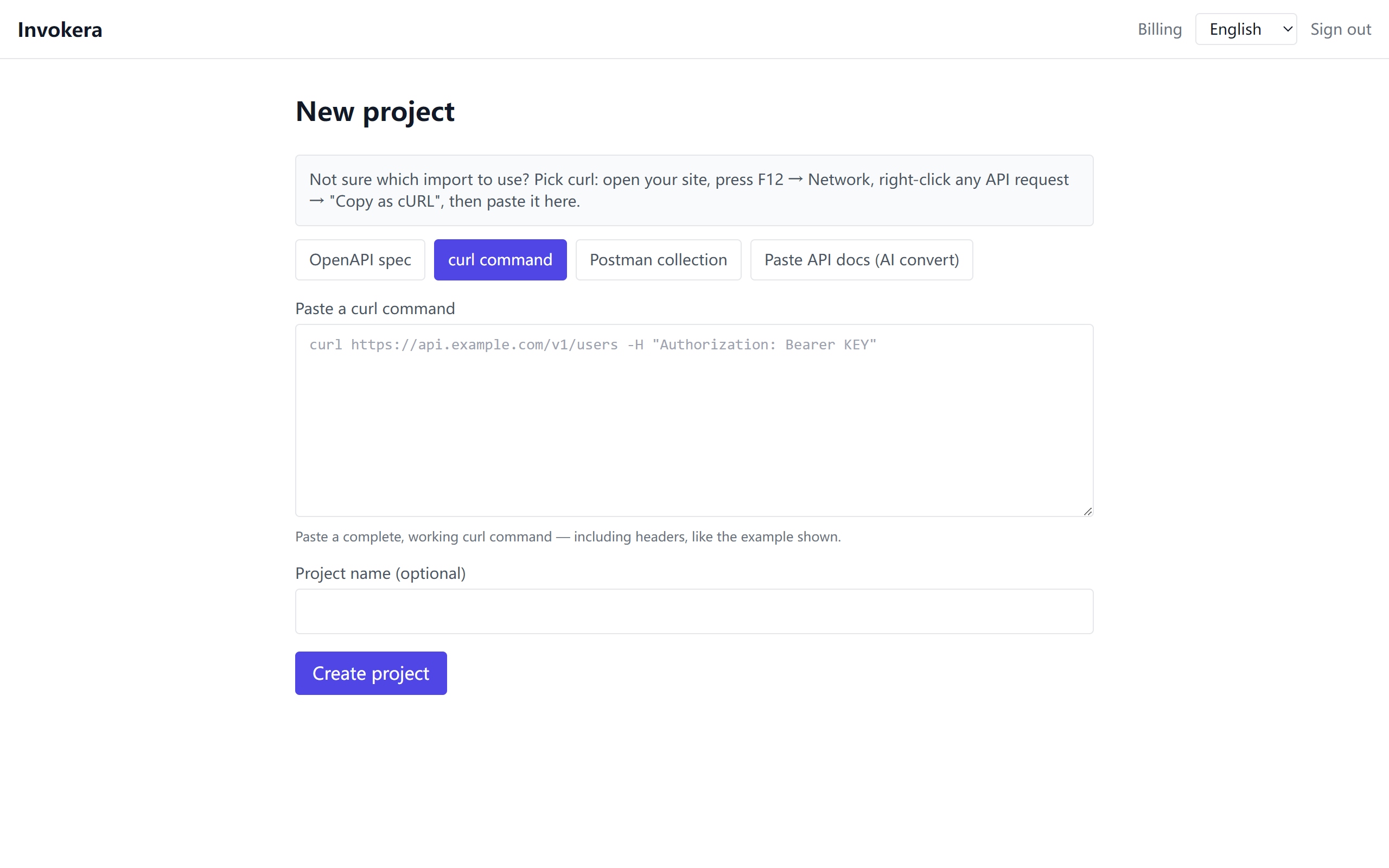
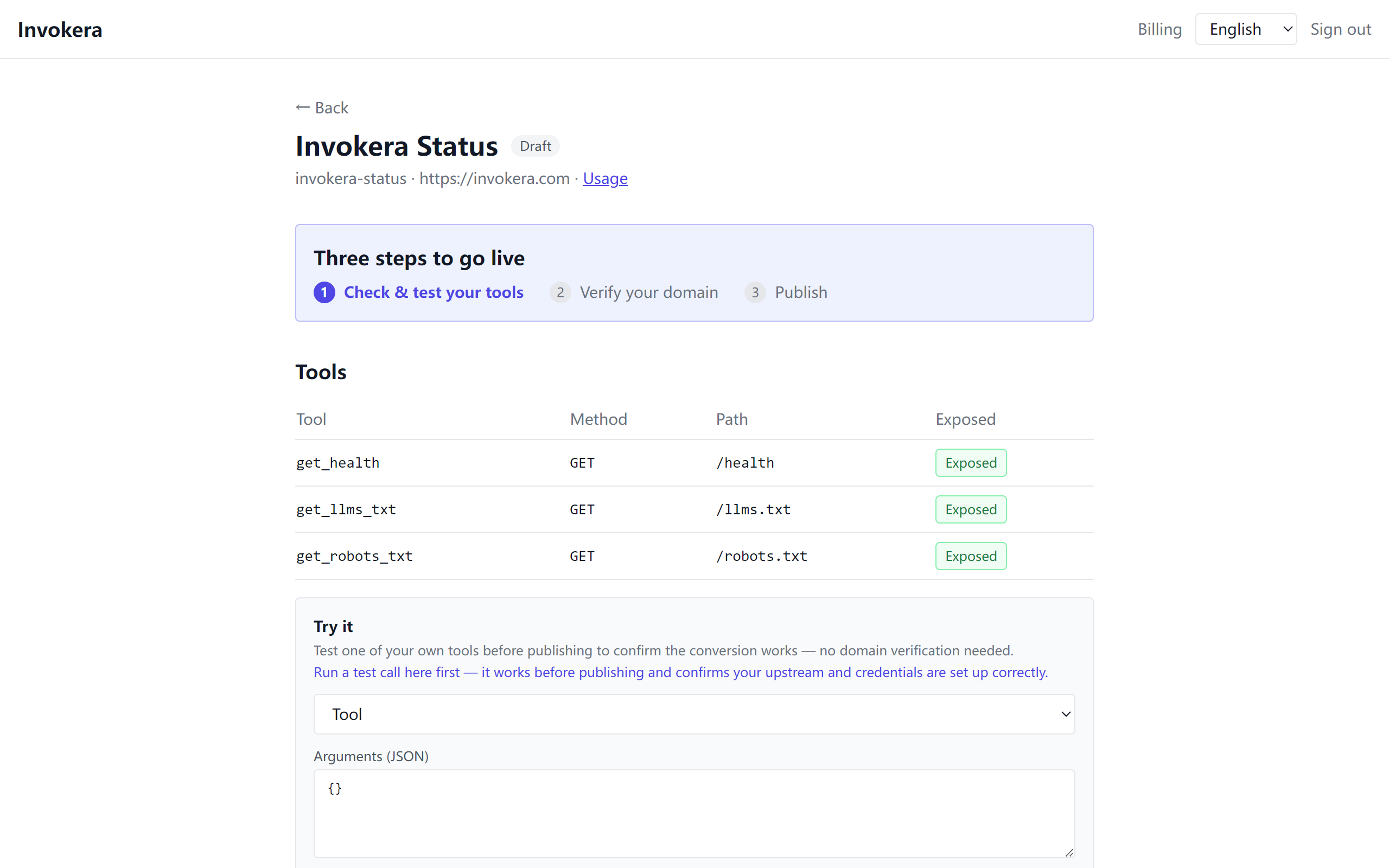
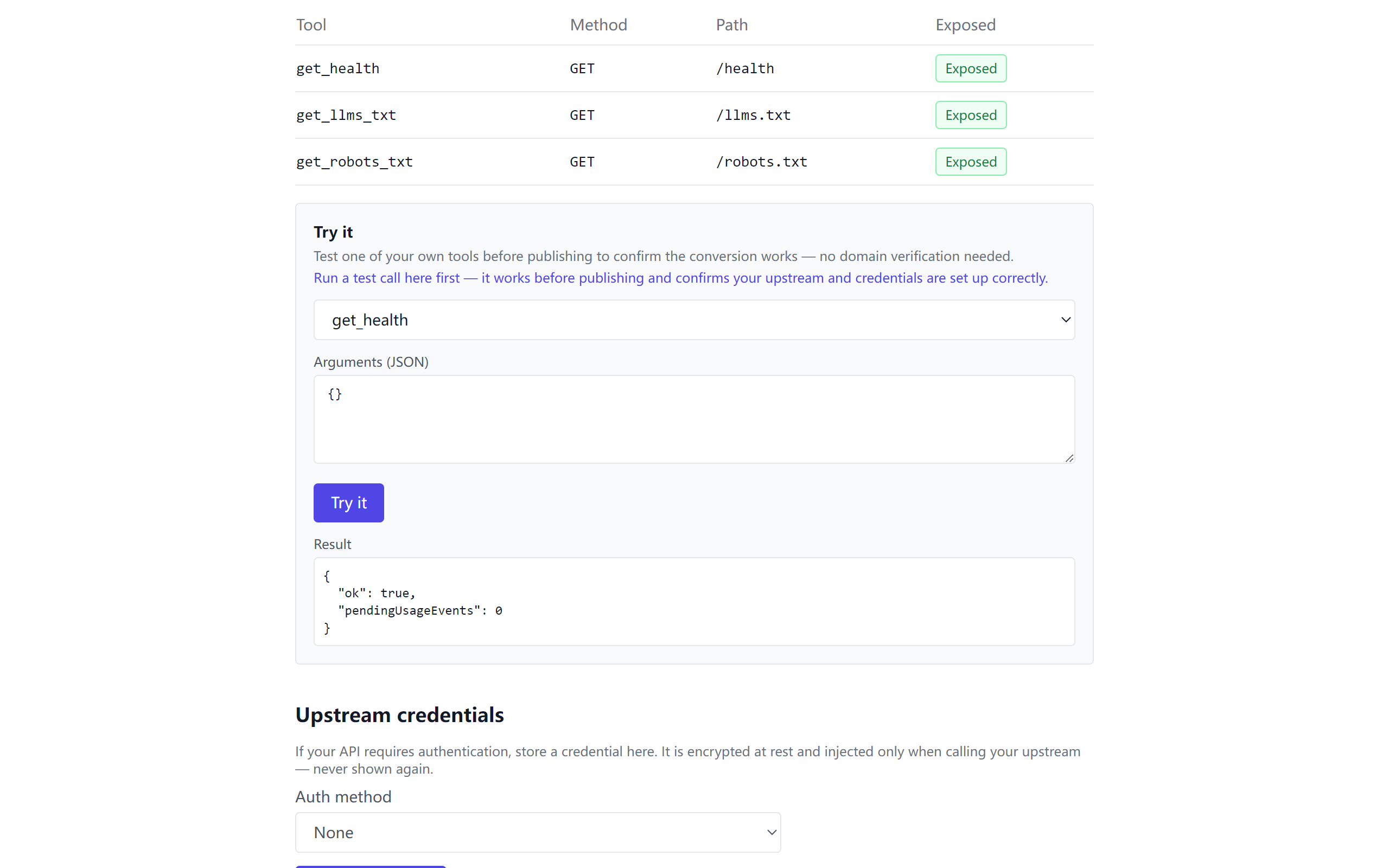
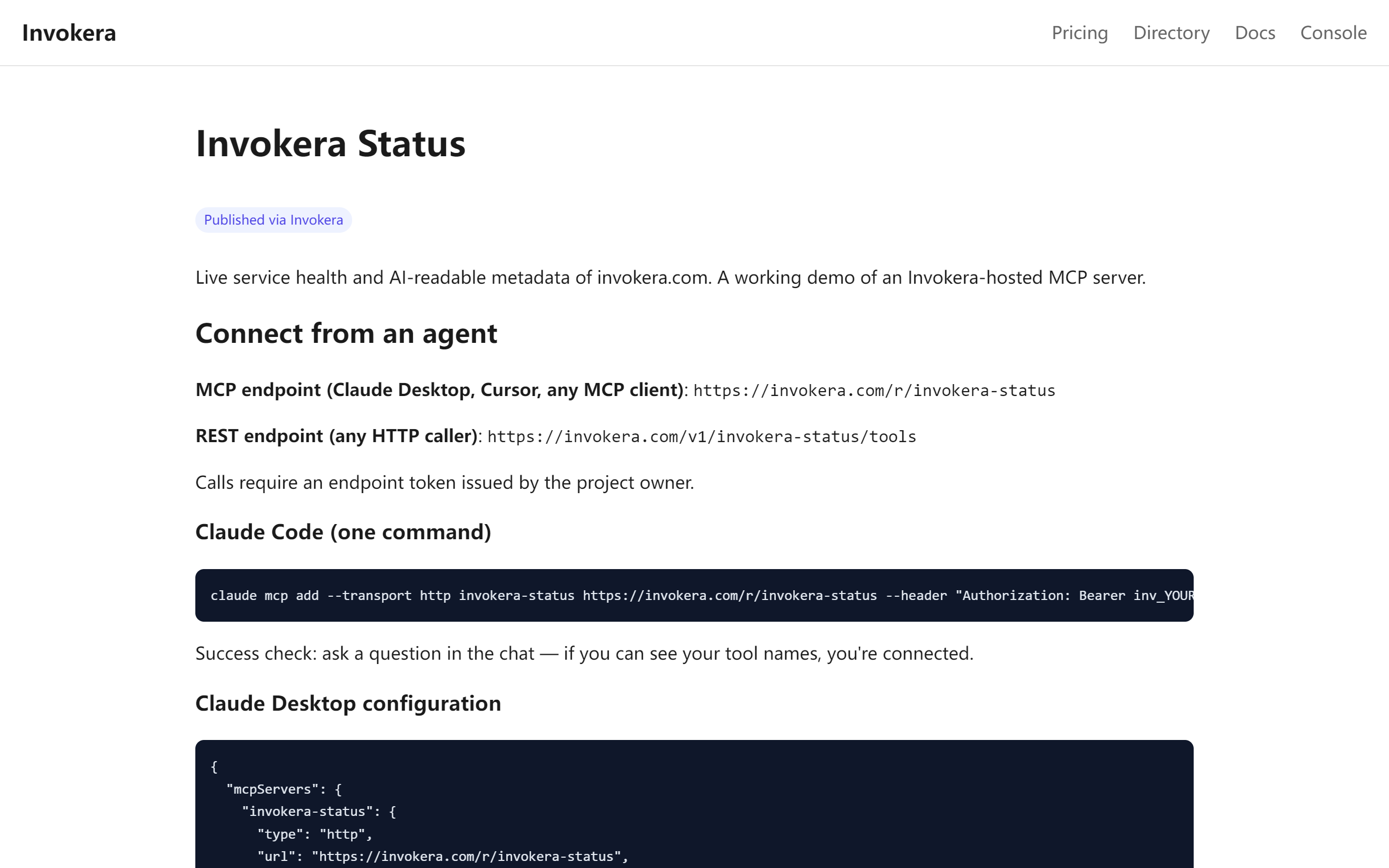
Three ways to import
OpenAPI (URL)
Paste a public OpenAPI/Swagger spec URL into the console's OpenAPI tab — the fastest and most complete path.
curl
Paste a working curl command into the console's curl tab — Invokera derives a typed tool from it. For example:
curl https://api.example.com/v1/users -H "Authorization: Bearer KEY"Postman
In Postman, export your collection as Collection v2.1 JSON, then paste the JSON into the console's Postman tab.
Troubleshooting domain verification
Verification looks for a TXT record at _invokera-challenge.<your-domain> (or a file at /.well-known/invokera-challenge.txt). A challenge is valid for 72 hours and allows up to 30 checks. Common failures:
| Symptom | Likely cause | What to do |
|---|---|---|
| "TXT record not found" even though you added it | Most DNS panels (Cloudflare, Aliyun, Tencent Cloud, GoDaddy) append your domain to the record name automatically — entering the full name creates _invokera-challenge.example.com.example.com. | Enter only _invokera-challenge as the record name/host. Use the full name only if your panel explicitly asks for an FQDN. |
| "Value mismatch" although the token looks right | The value was saved with extra quotes or whitespace — some panels keep pasted quotes as part of the value. | Paste the token exactly, without surrounding quotes or spaces; the panel adds its own quoting if needed. |
| Record added but verification still fails | DNS changes can take a few minutes (sometimes longer) to propagate. | Wait a few minutes and check again. You can confirm with: nslookup -type=TXT _invokera-challenge.<your-domain> |
| You added the record for a subdomain like api.example.com | Verification targets the registrable domain (eTLD+1), e.g. example.com — not the subdomain. | Create the TXT at _invokera-challenge.example.com. On a hosting platform's shared subdomain, use the .well-known file method instead. |
| "Challenge expired" or "too many attempts" | Each challenge is valid for 72 hours and allows up to 30 checks. | Start a new challenge from the project page and update the DNS record (or file) with the new token. |
Connect via MCP
Claude Code
The fastest way to connect — run one command in your terminal:
claude mcp add --transport http your-project https://invokera.com/r/your-project --header "Authorization: Bearer inv_YOUR_TOKEN"Success check: ask a question in the chat — if you can see your tool names, you're connected.
Claude Desktop
Claude Desktop connects to remote servers through the mcp-remote bridge (needs Node.js). Add this to claude_desktop_config.json:
- Windows:
%APPDATA%\Claude\claude_desktop_config.json - macOS:
~/Library/Application Support/Claude/claude_desktop_config.json
{
  "mcpServers": {
    "your-project": {
      "command": "npx",
      "args": [
        "-y",
        "mcp-remote",
        "https://invokera.com/r/your-project",
        "--header",
        "Authorization:${AUTH_HEADER}"
      ],
      "env": {
        "AUTH_HEADER": "Bearer inv_YOUR_TOKEN"
      }
    }
  }
}
After editing the file for your OS, restart Claude Desktop for the change to take effect.
Success check: ask a question in the chat — if you can see your tool names, you're connected.
Cursor
Create .cursor/mcp.json at the root of your project with the same JSON shape:
{
  "mcpServers": {
    "your-project": {
      "url": "https://invokera.com/r/your-project",
      "headers": {
        "Authorization": "Bearer inv_YOUR_TOKEN"
      }
    }
  }
}
Success check: ask a question in the chat — if you can see your tool names, you're connected.
VS Code
Create .vscode/mcp.json in your workspace (note the top-level key is "servers"):
{
  "servers": {
    "your-project": {
      "type": "http",
      "url": "https://invokera.com/r/your-project",
      "headers": {
        "Authorization": "Bearer inv_YOUR_TOKEN"
      }
    }
  }
}
REST
No MCP client? Every project also exposes a self-describing REST endpoint:
curl https://invokera.com/v1/your-project/tools -H "Authorization: Bearer inv_YOUR_TOKEN"Discover public tools (Meta-MCP)
One connection to the Meta-MCP server lets your agent search, describe and invoke public tools across Invokera, with no token. Add it to Claude Code in one line:
claude mcp add --transport http invokera https://invokera.com/discoverAlso listed on:
- Smithery ·
sdzhuang/invokera - MCP Registry ·
com.invokera/discover
Automation / CI
Platform API keys (ik_) for managing projects from scripts are not yet available for self-serve issuance. If you need automation or CI integration, please contact us and we will enable one for your account. A call will look like this:
curl -X POST https://invokera.com/api/v1/projects -H "Authorization: Bearer ik_YOUR_API_KEY" -H "Content-Type: application/json" -d '{"specUrl":"https://api.example.com/openapi.json"}'FAQ
My call fails with an error code — what does it mean?
MCP errors carry a JSON-RPC code plus an HTTP status. The frequent ones:
| Code | Meaning | Fix |
|---|---|---|
-32001 (HTTP 404) |
No MCP endpoint at this slug — the project doesn't exist or the URL is misspelled. | Check the endpoint URL against the project page; the slug must match exactly. |
-32002 (HTTP 401) |
Missing or invalid bearer token. | Send Authorization: Bearer inv_… with your project token; re-copy it from the console if unsure. |
-32005 (HTTP 403) |
The project isn't published yet — draft projects can't be called even with a valid token. | Verify domain ownership and publish the project first. |
-32004 (HTTP 409) |
The project has no enabled tools. | Enable at least one tool in the console, then call again. |
-32003 (HTTP 403) |
The tool set has been suspended by the platform. | Contact support if you believe this is a mistake. |
Domain verification keeps failing — what should I check?
DNS TXT records can take a while to propagate — wait a few minutes and check again. Verification targets the registrable domain (eTLD+1), not the subdomain. If your API lives on a hosting platform's subdomain, use the .well-known file method instead.
What is the difference between inv_ and ik_ tokens?
inv_ endpoint tokens only let callers invoke your published tools. ik_ platform API keys manage your account and projects — never hand them to agents.
How do I rotate an endpoint token?
Open the project in the console and use "Rotate token". The old token stops working immediately, so update your agents right after.
I lost my invoke token — how do I get it back?
Tokens are never shown again. On the project page use "Rotate token": you get a fresh token immediately and the old one stops working — update every client that used it.
Claude is connected but sees no tools — what's wrong?
Usually one of three things: the project has no enabled tools (enable them in the console); the client wasn't fully restarted after editing its config (Claude Desktop needs a complete restart); or the endpoint URL / token is wrong — run the test call in the console to rule out the server side.